Create a Prime Account
Open app.untangled.finance for mainnet, or beta.untangled.finance to try it on testnet first.
You need a Stellar wallet that can sign Soroban authorisations, such as Freighter, and a little XLM for fees. LOBSTR, xBull and Albedo can't approve Prime Account actions through their own extensions.
- Select Connect a wallet in the top right and connect. This wallet will be the account's first signer.
- Go to Accounts and select Create a Prime Account.
- The first step shows the address the account will have. It doesn't exist yet, so don't send anything to it. Select Next. (If you already have an account, Create another Prime Account gives you a second address.)
- Add the other signers by pasting each address and selecting Add signer. You can also stay the only signer and add people later.
- Set how many signers must approve. The video uses 2 of 3.
- Check the address, the signers and the approval count, then select Create account and sign.
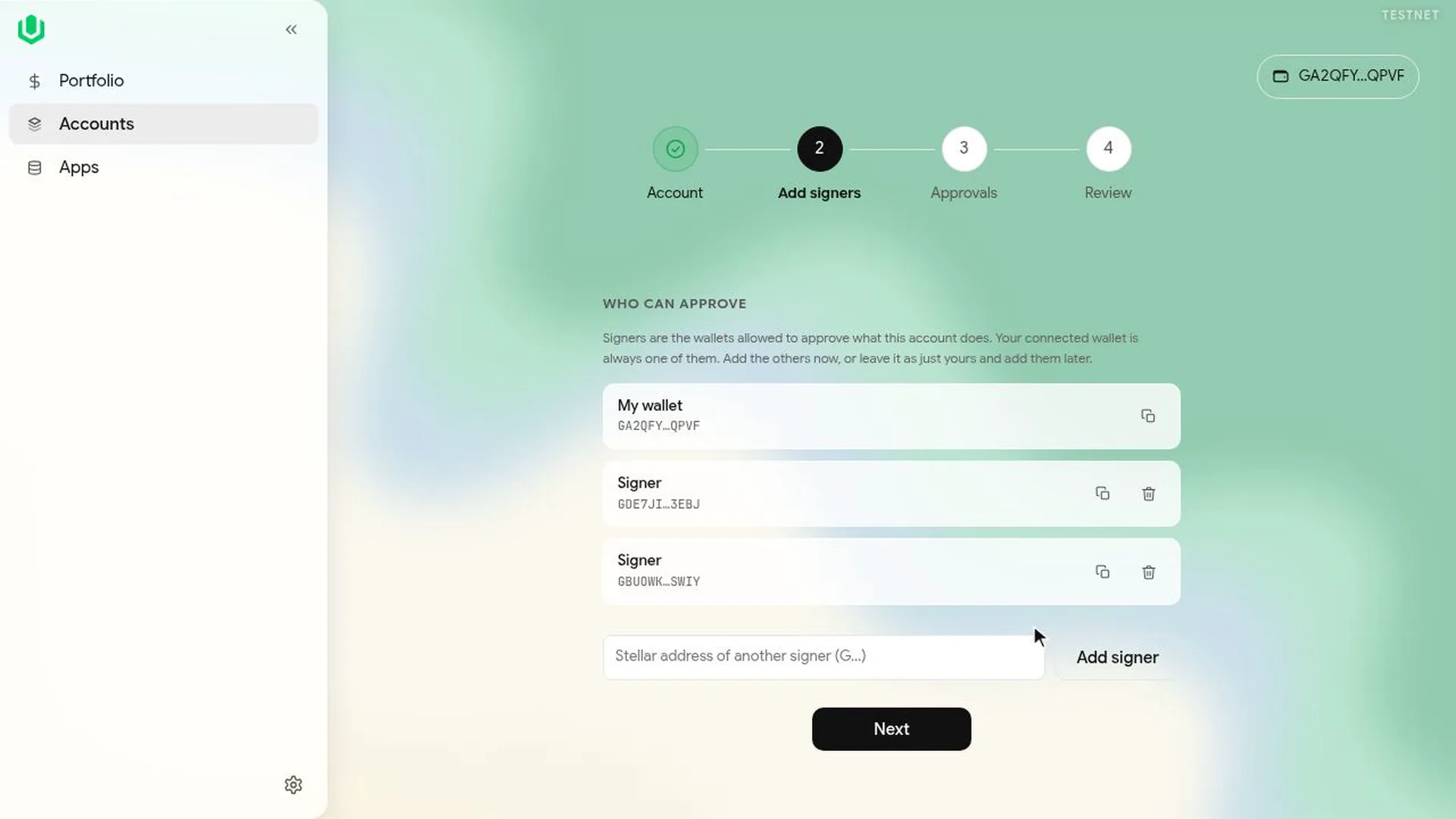
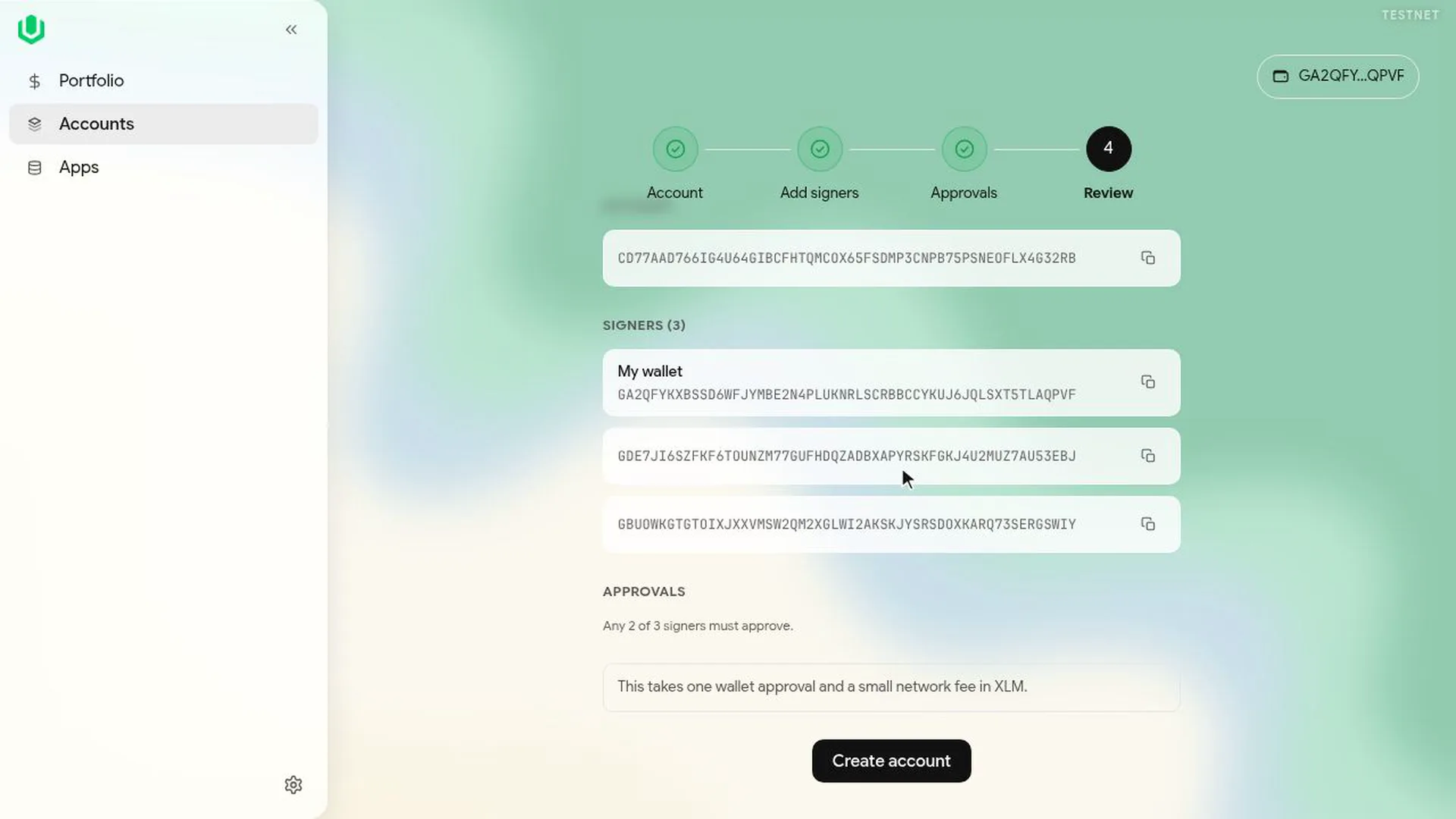
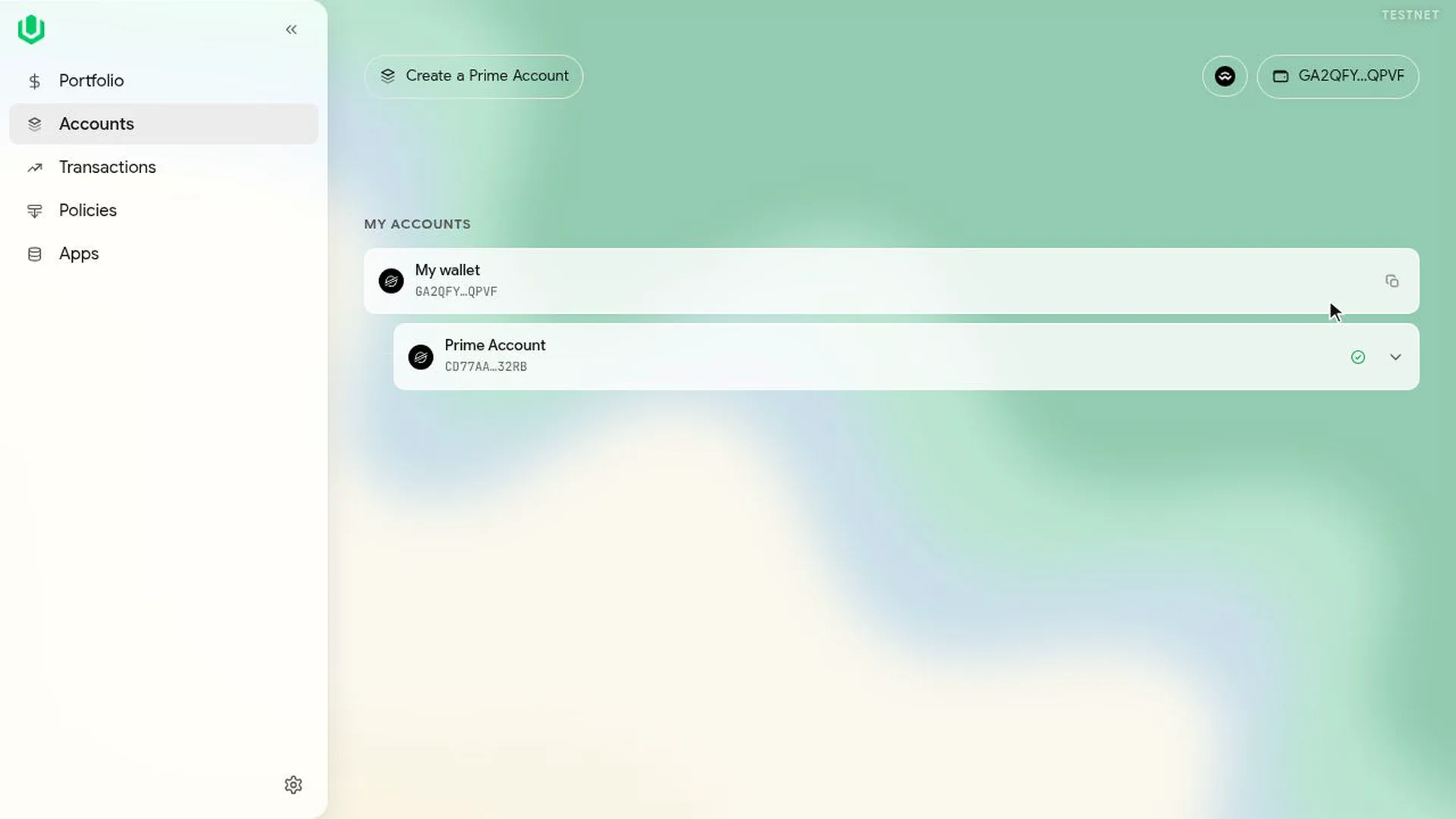
When the transaction confirms, Accounts shows your wallet with the Prime Account under it.
The account has no access to custody's funds until custody sets up a gate for it.
Change the signers later
Go to Policies, open the Signers tab and select Manage signers. There you can add or remove a signer and change the approval count. A change takes two transactions. The first installs the new set of signers and needs the current approval count; the second retires the old set and needs the new one. If your signature isn't enough, the others co-sign from the Queue. See Signers and approvals.
Next: Set up the custody gate.