Install rules for an agent
The video sets up three swap rules on the Aquarius XLM/USDC pool, each drawing custody's XLM and returning USDC to custody:
| Rule | Amount per swap | Who approves | Wait | Least returned |
|---|---|---|---|---|
| xlm_upto_10 | Up to 10 XLM | Agent | None | 0.1 USDC |
| xlm_10_to_100 | More than 10, up to 100 XLM | Agent | 12 ledgers (about a minute) | 2.5 USDC |
| xlm_over_100 | More than 100 XLM | Agent and Admin | None | 25 USDC |
Each row is its own rule. To add one:
-
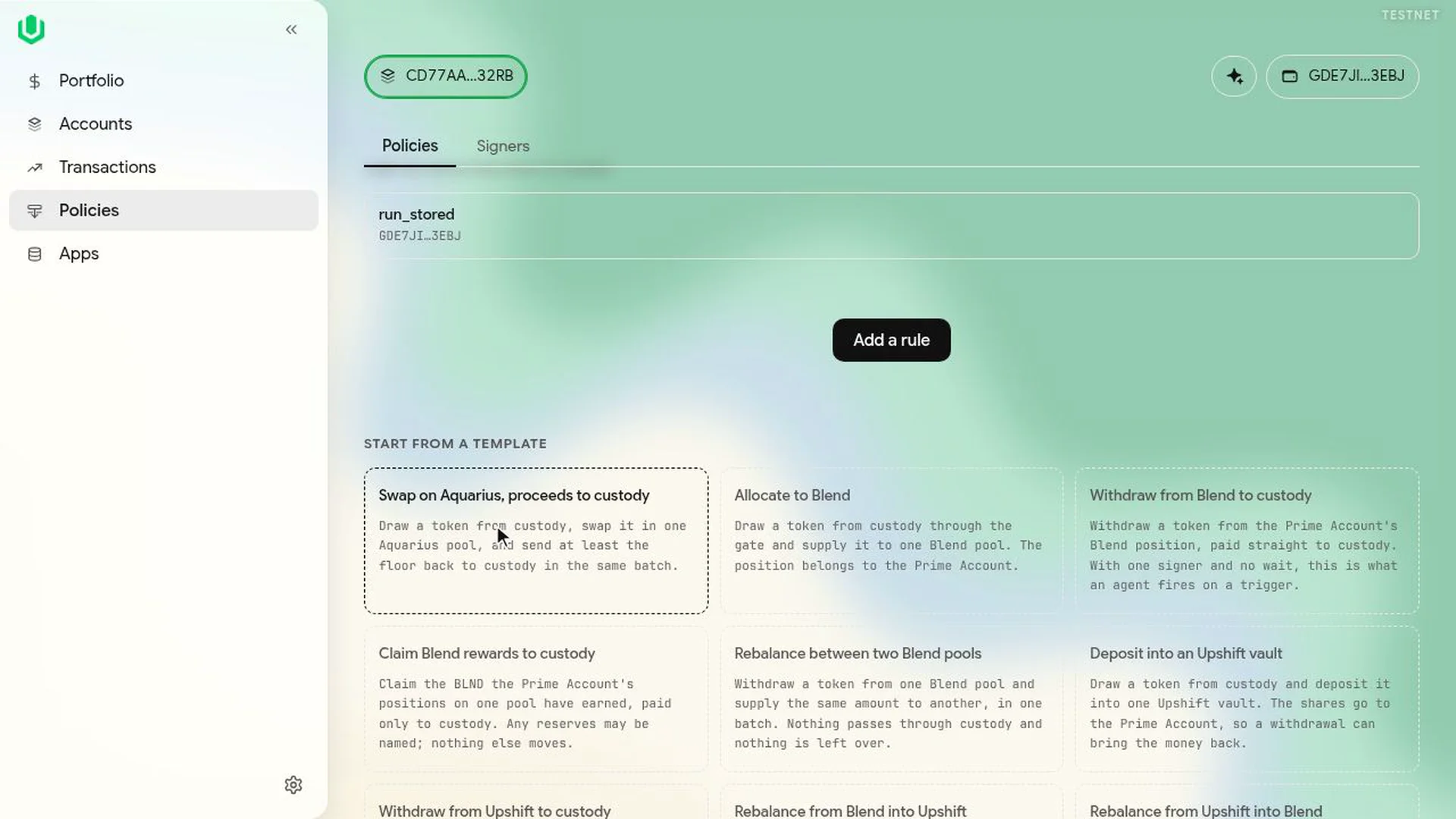
As a signer of the Prime Account, go to Policies. Under Start from a template, select Swap on Aquarius, proceeds to custody. The template works through the account's execution contract and custody gate. If none is connected in this browser, the app says so and opens Manage execution.
-
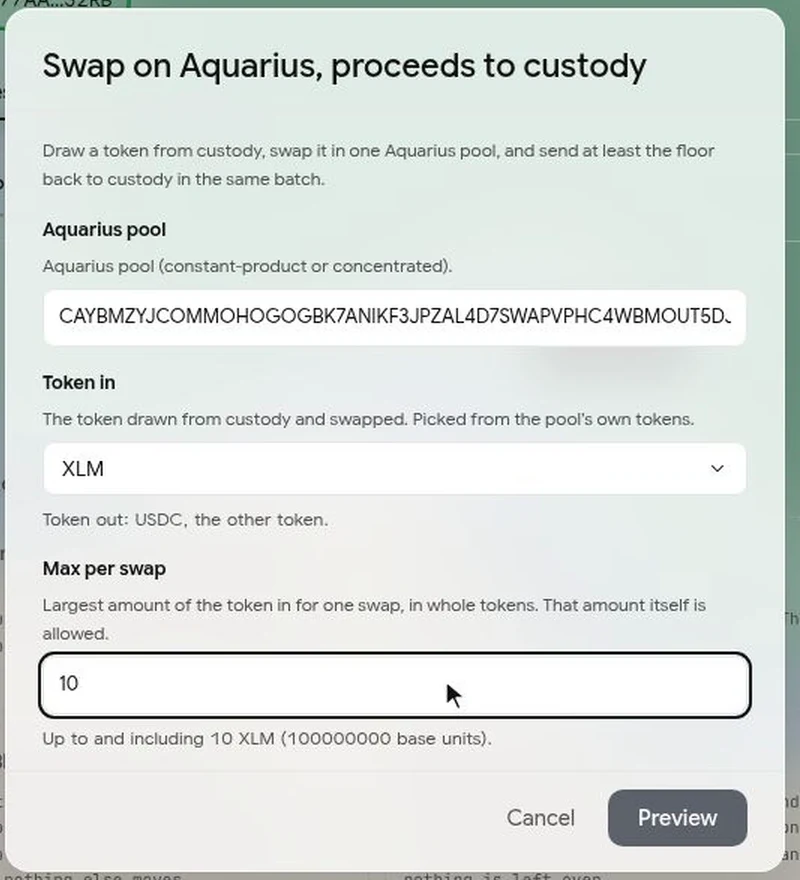
Pick the pool from the list, or paste its address. The app accepts it only if it is an Aquarius pool.
-
Under Token in, pick the token custody draws (XLM here). The pool's other token is the token out (USDC).
-
Enter Max per swap in whole tokens. That amount itself is allowed. Then select Preview.
-
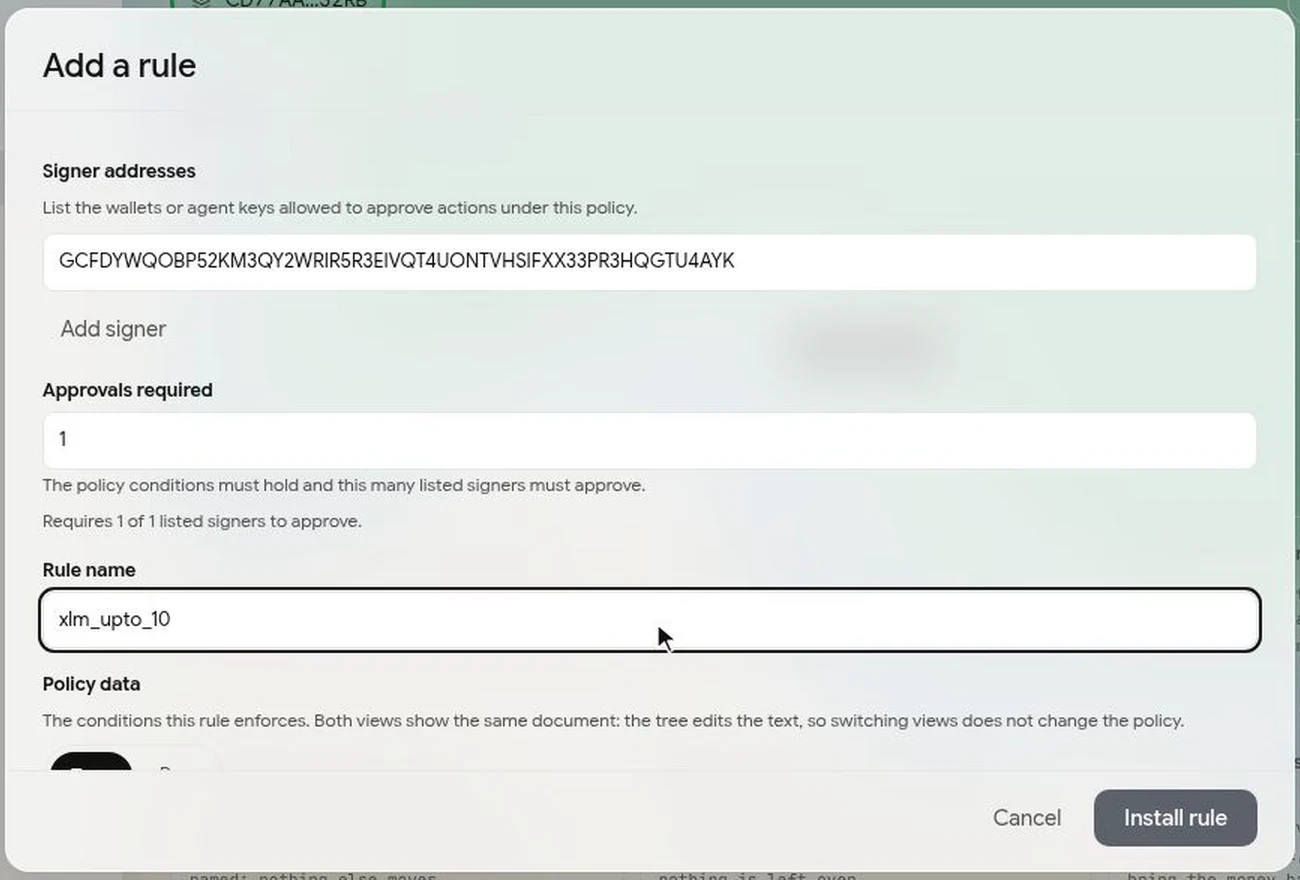
Add a rule opens with your wallet as the first signer. Replace it with the agent's address, and for the top band add the Admin as well. Set Approvals required: 1 lets each listed signer act alone, 2 makes the agent and the Admin both sign. Check the Rule name.
-
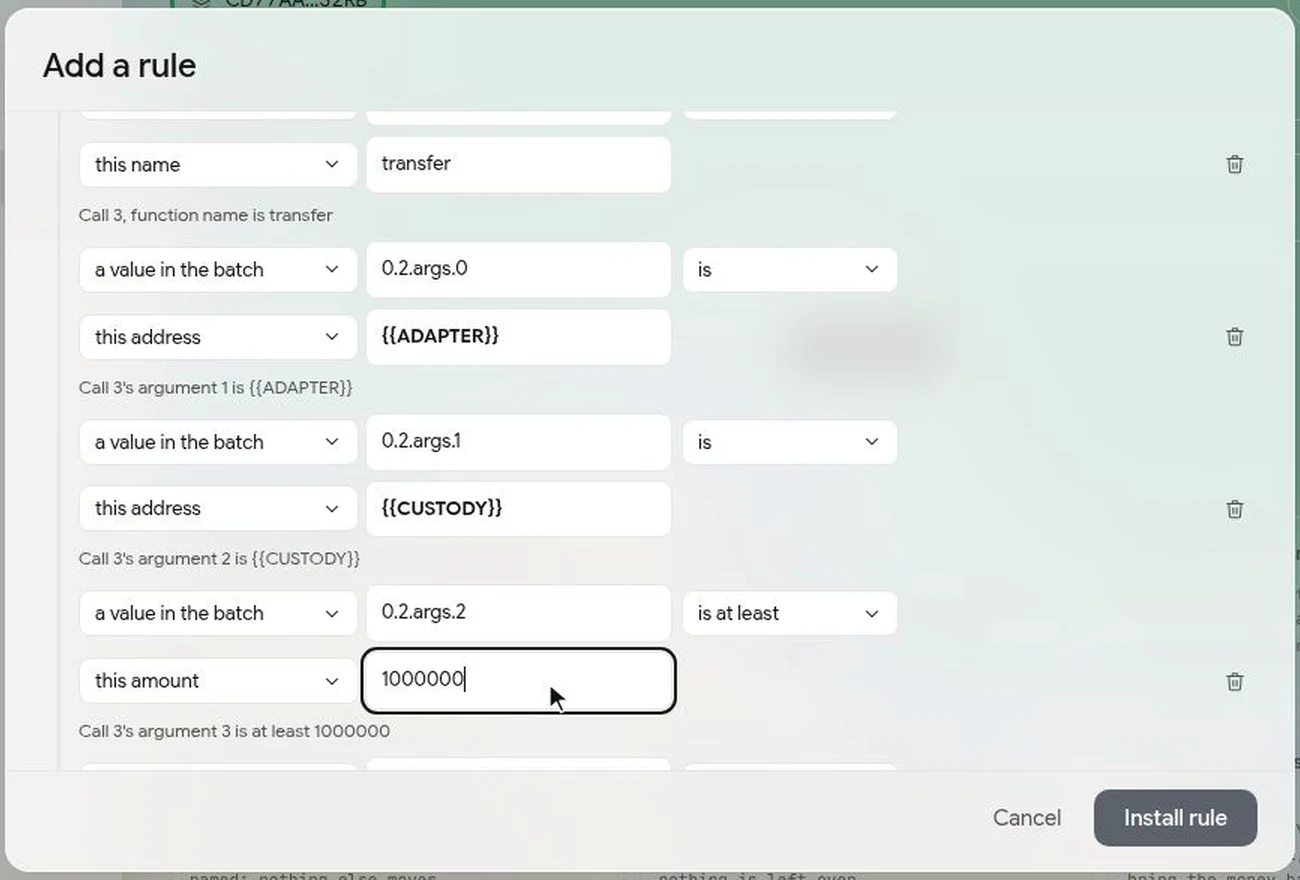
The policy, shown as a tree, holds three values with defaults: the minimum amount per swap (0), the least the swap must return to custody (1 base unit of the token out) and the wait (0 ledgers). Change them there before you install:
- Bands don't overlap if each starts one base unit above the last one's maximum. XLM has 7 decimal places, so "more than 10 XLM" is a minimum of 100000001.
- Set a real minimum return. At 1 base unit, the rule gives the swap no price protection. It is a fixed amount for every swap in the band and has no link to price, so size it for the band's smallest swap.
- Set the wait in ledgers, about 5 seconds each. Every move also waits at least the gate's own minimum.
-
Select Install rule and sign.
Installing a rule needs the account's approval count, so another signer may have to co-sign it from the Queue. In the video, Signer B opens the request from Transactions, then Queue, checks it on the co-sign page and selects Sign and continue.
When all three are installed, Policies lists them, and you can open one to see its details.
The other templates that move custody's funds work the same way, such as Allocate to Blend and Withdraw from Blend to custody; see Policies.
Next: Run a move.