Set up the custody gate
Custody does this step with its own wallet. The funds stay in the custody wallet, and the gate gets an allowance to draw on them.
The set-up page is at app.untangled.finance/#/onboard/stellar/gate on mainnet, or the same path on beta.untangled.finance for testnet. A Prime signer can also reach it from Policies (the Set one up link) or from Manage execution on the Accounts page, and send the link to whoever holds custody's keys.
1. Custody
Connect the custody wallet and open the page. The first step shows that wallet as the account holding the funds. If it is a multisig, it also shows the weight needed and the weight your key has. In that case each transaction below will wait in the Queue for custody's other signers.
2. Destinations
Paste the address of the Prime Account the gate is for. The app fills in that account's execution contract, the only caller the gate will accept.
Set the wait:
- Wait before a move runs is the minimum number of ledgers every move waits. 0 means the gate adds no wait and leaves it to each rule. A ledger is about five seconds.
- Run window is how long a move can still run after its wait. After that it lapses. 17,280 ledgers is about 24 hours.
These apply to every move through the gate, recoveries included.
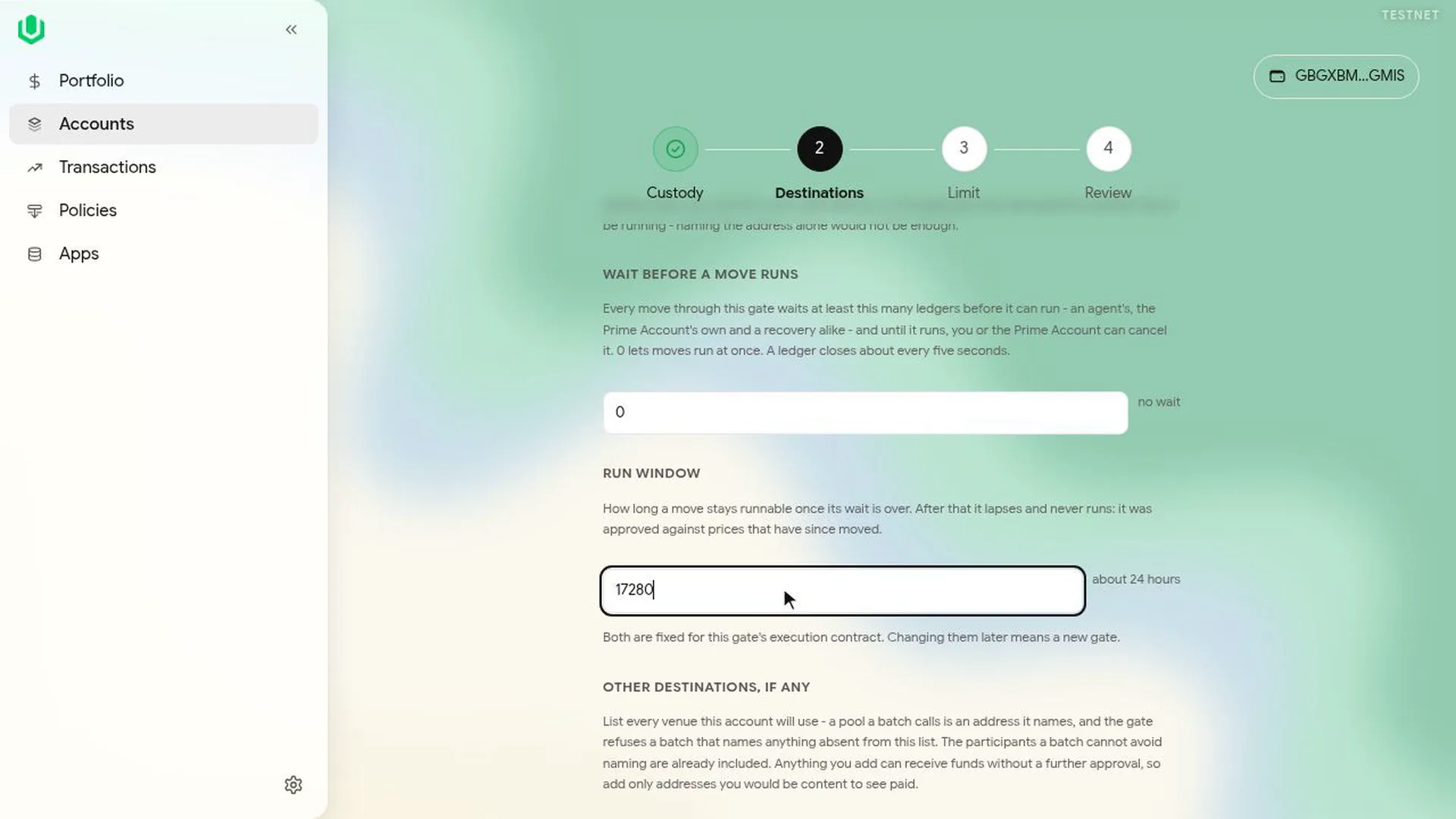
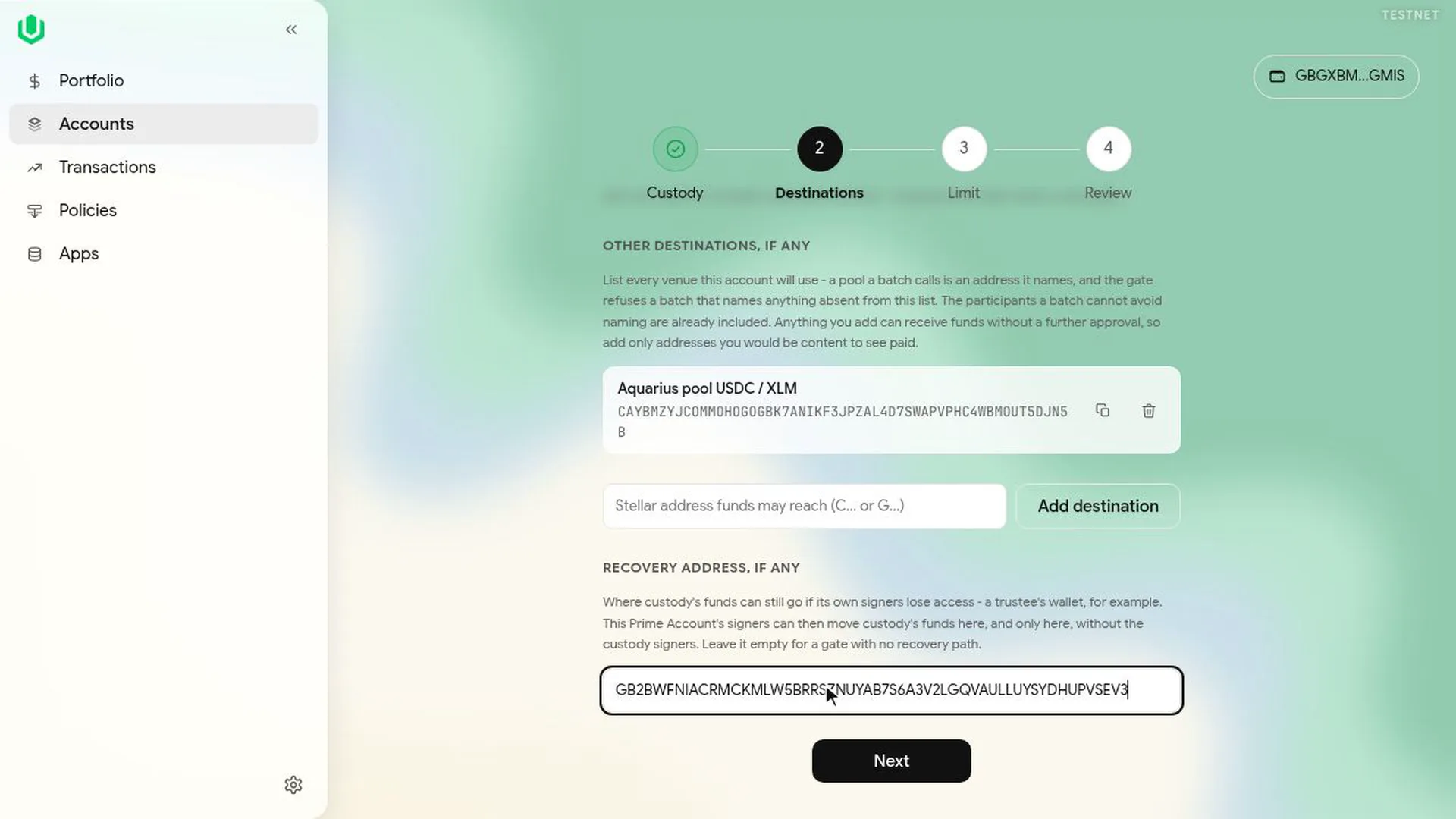
Add every venue the account will use, such as an Aquarius pool. On mainnet, search for the pool by token or address; on testnet, paste its address. The gate refuses any move that involves an address not on its list. The Prime Account, custody and the assets are added automatically.
The gate can pay any address on its list without further approval, so keep the list short.
Recovery address is the wallet that gets custody's funds if custody loses its keys. The app fills it in with a signer of the Prime Account. Change it to a trustee's wallet if you have one, as in the video. Keep one: you can remove it, but then custody's funds can't move once its signers are gone, and the app warns you of that.
3. Limit
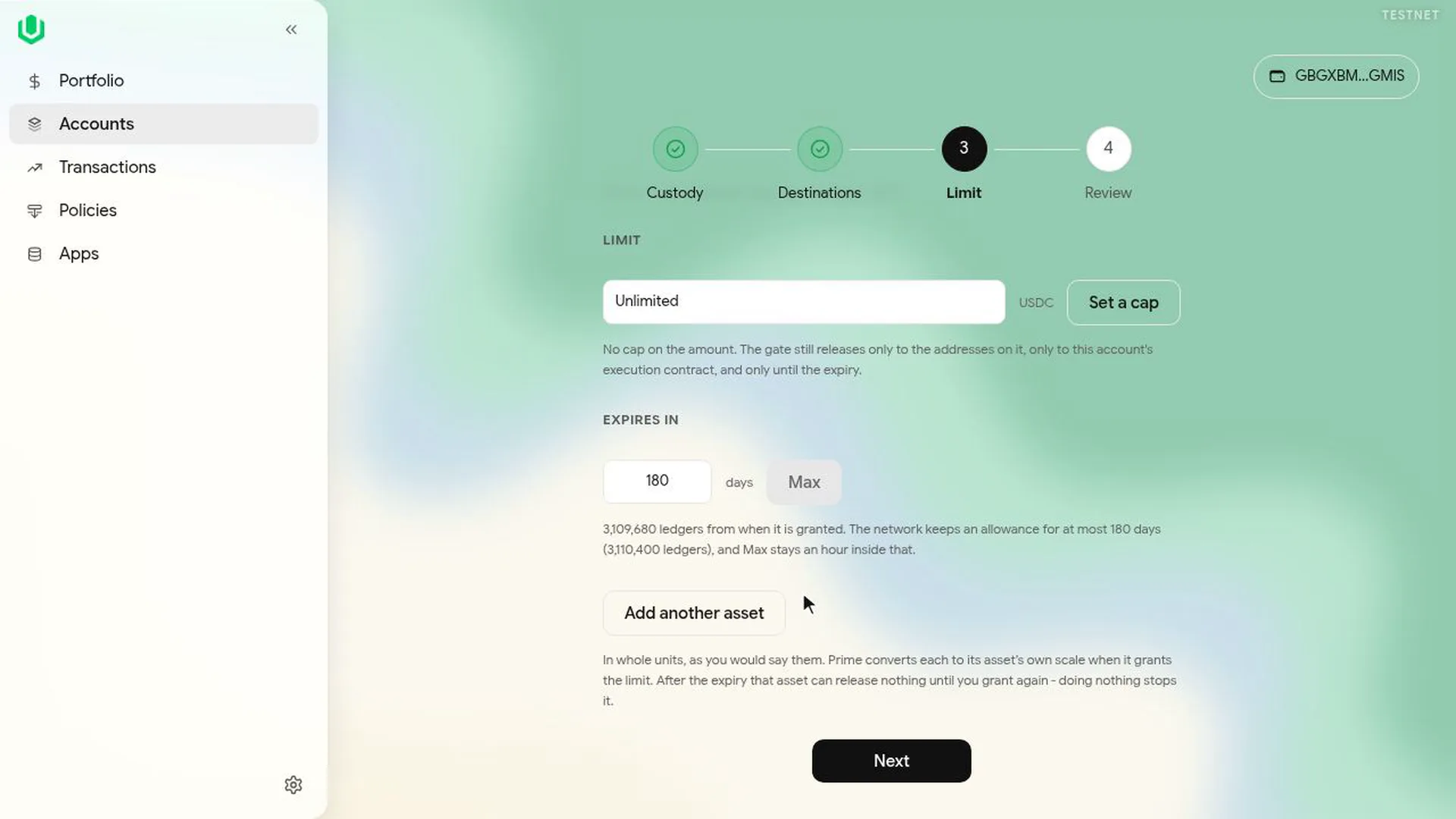
For each asset, enter the amount the gate may release (or Unlimited) and the number of days the allowance lasts, up to 180. Add another asset adds a second one, such as USDC. When an allowance expires, nothing more can be drawn in that asset until custody grants a new one.
4. Review
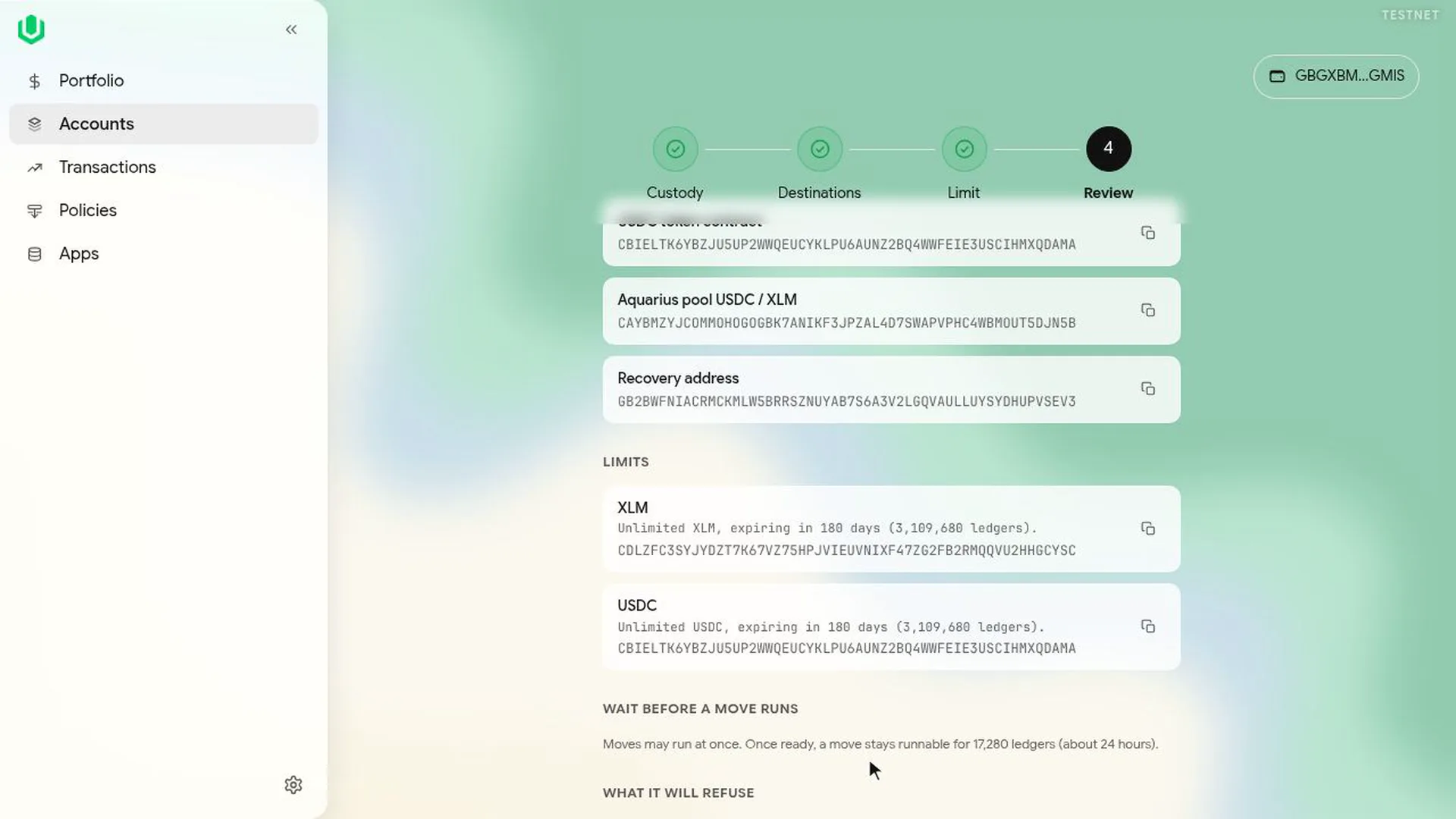
Check the gate address, where it draws from, where it can send funds, the limits and the wait. Then select Deploy gate and grant limits and sign.
The destinations, wait and recovery address can't be changed once the gate is deployed. To change them you deploy a new gate. Allowances can be changed later with a new grant.
Custody's other signers
The set-up sends one transaction for the gate and one per asset. If custody is a multisig and its own key isn't enough, each one waits in the Queue. Each of custody's other signers opens Transactions, then Queue, opens the item and selects Sign with active wallet. When the weight is reached, the last signer selects Submit.
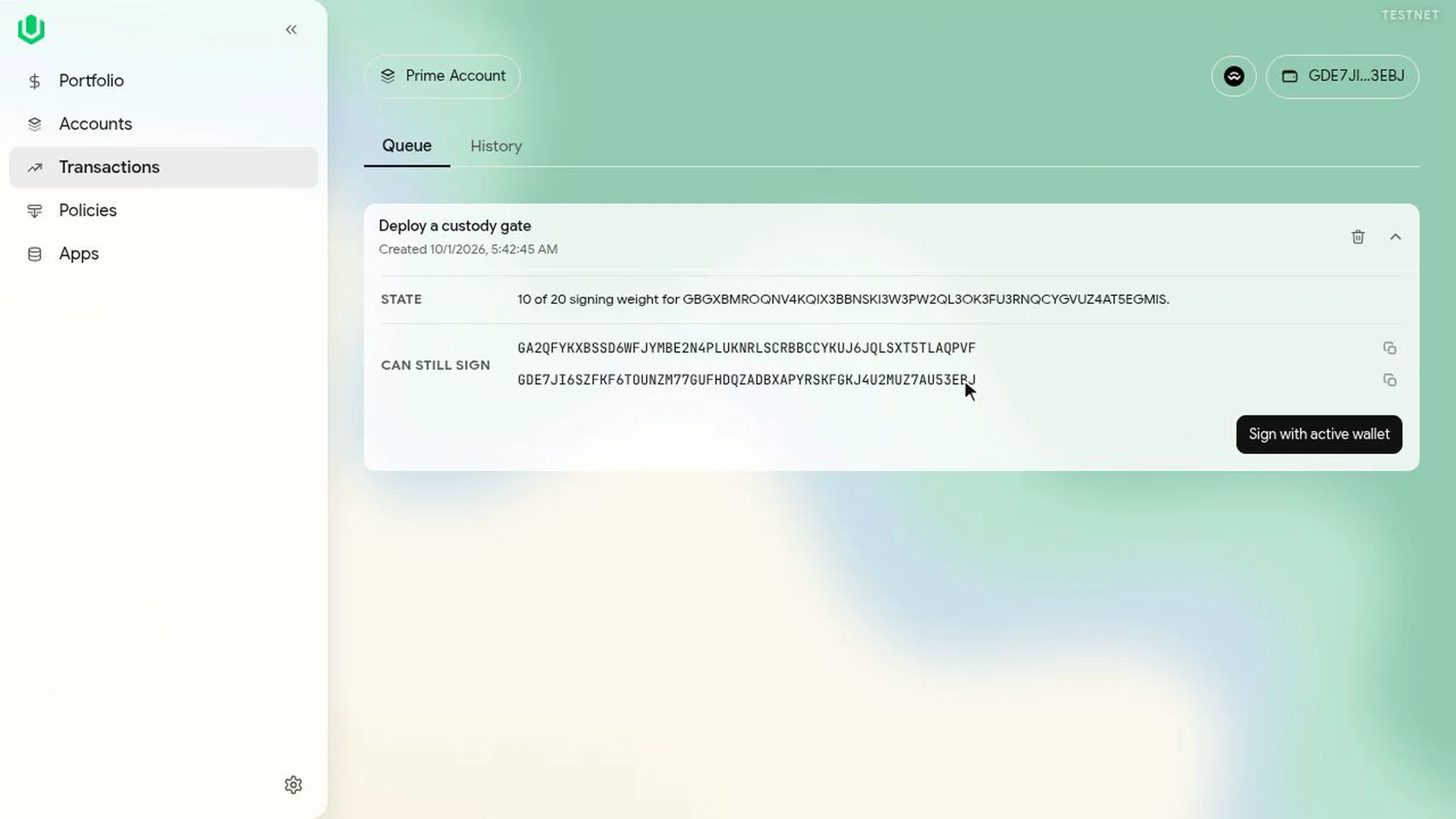
Once all of them are on chain, the set-up page shows the gate as live.
Restrict custody's own keys
The gate limits what Prime can draw. It doesn't stop custody's own key from moving custody's funds directly, outside Prime. To stop that, change the custody account's signers so that no single key can move funds alone. On Stellar this is a Set Options operation on the custody account.
Getting this wrong can lock custody's funds for good. Try the same change on testnet first, and keep a recovery address on the gate.
Decide the new set-up before you build anything:
- the weight of custody's own key (the master weight);
- each other signer's public key and weight, from 1 to 255;
- the low, medium and high thresholds.
A transaction goes through when the weights of its signatures add up to the threshold of its operations. Payments and contract calls, such as granting the gate an allowance, use the medium threshold. Changing signers or thresholds uses the high threshold. So the keys you will still hold must reach the high threshold, or the account can't be changed again. A master weight of 0 means custody's own key can't sign at all.
In the video, custody needs weight 20: its own key has 10, and Signer A and Signer B have 5 each, so custody can't move funds without all three. If one of those keys is lost, custody can no longer sign, and the gate's recovery address is how its funds get out.
To make the change in Stellar Lab:
- Choose the network (testnet first), then Build Transaction with the custody account as the source account, and select Fetch next sequence.
- Add one Set Options operation for each signer, with its public key and weight. Each operation adds, updates or removes one signer, and a weight of 0 removes it. Signers you don't mention stay as they are. An account can have up to 20 signers.
- In one of the operations, set the master weight and the three thresholds.
- Keep all the operations in this one transaction, so they apply together or not at all.
- Sign with enough of custody's current keys to meet its current high threshold (for a plain account, its own key) and submit.
Then look the account up, in Stellar Lab or an explorer such as Stellar Expert, and check every signer, weight and threshold. Back in Prime, the gate set-up page's first step now shows the weight needed and the weight your key has.
From then on, custody's own transactions, such as granting a new allowance or cancelling a stored move, wait in the Queue for its other signers. The gate's draws within the allowance don't need custody's signatures.
The same applies on EVM, where the funds have to sit in a Safe; see Prime on EVM.