Prime on EVM
The EVM version of Prime runs at beta-evm.untangled.finance. It follows the same steps as the walkthrough on Stellar: create a Prime Account, set up a custody gate, create the execution contract, install rules, then run moves, with or without a wait.
Prime on EVM runs on the Base Sepolia test network only, with test funds. There is no EVM mainnet version yet.
Everything is built from unmodified, audited contracts:
| Part | On EVM |
|---|---|
| Prime Account | A Safe with its own Zodiac Roles module. Each rule is a role on that module. |
| Custody gate | A Safe owned by the custody account alone, with its own Roles module. |
| Execution contract | OpenZeppelin's TimelockController, one for each gate. It runs a move, made of calls, as one transaction, and stores moves that have to wait. |
Connect a wallet
Select Connect a wallet and choose MetaMask, Coinbase Wallet, Rabby or Trust Wallet, or pair a phone wallet with WalletConnect. The wallet has to be on Base Sepolia and needs a little test ETH for fees. The app also has a built-in wallet for testing; see EVM Wallet.
1. Create a Prime Account
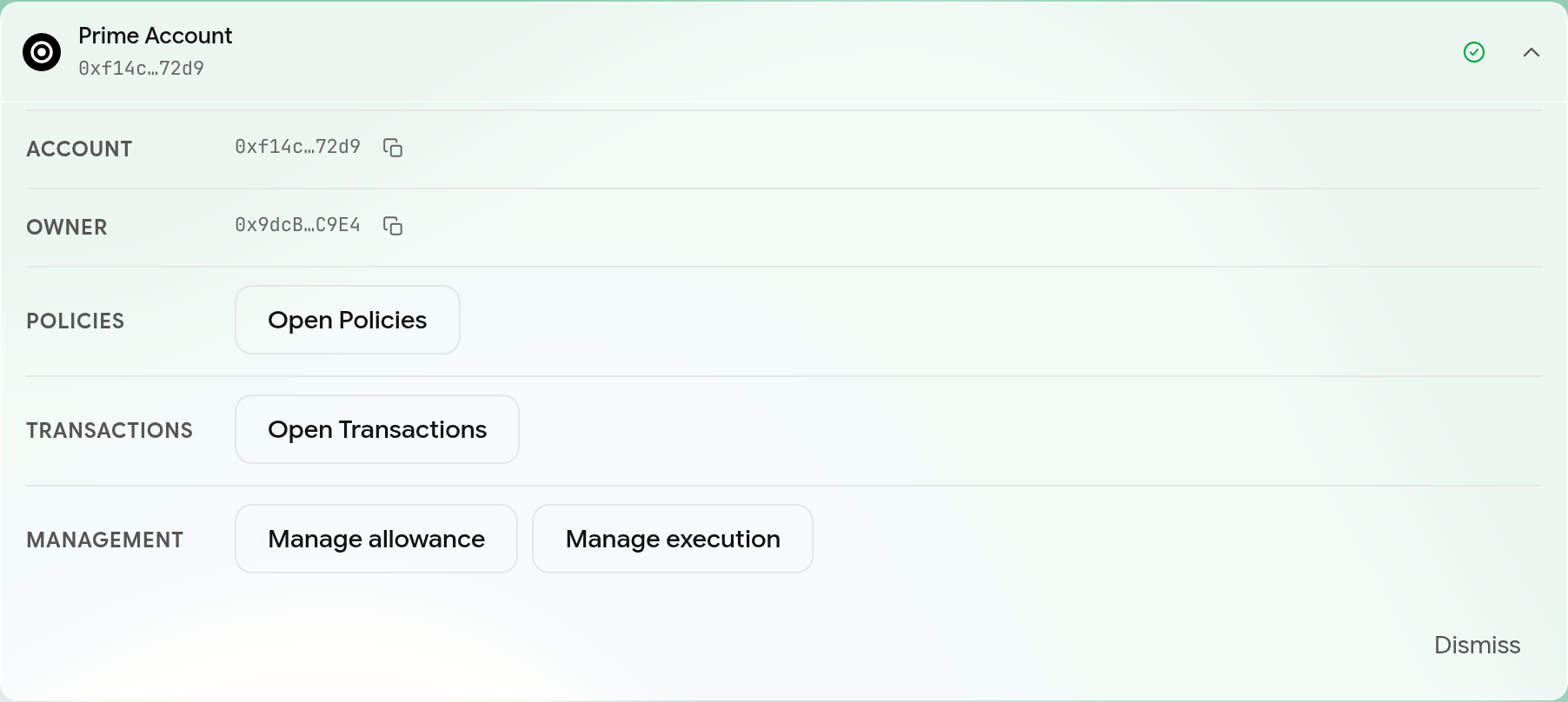
- Go to Accounts and select Create a Prime Account.
- The first step shows the address the account will have, worked out from your wallet. Create another Prime Account gives you a second address.
- Add the other signers by pasting each address and selecting Add signer.
- Set how many signers must approve.
- Check the address, the signers and the approval count, then select Create account. Your wallet asks twice: once to sign, once to send the transaction.
The transaction creates the Safe and its Roles module. The custody gate and the execution contract come later, as on Stellar.
2. Set up the custody gate
Custody does this step with its own wallet. The funds stay in custody, and the gate can draw only up to the limits custody grants it. The set-up page is at beta-evm.untangled.finance/#/onboard/evm/gate. While no gate is connected, Manage execution on the Accounts page links to it too, so a Prime signer can send the link to whoever holds custody's keys.
- Custody shows the connected wallet as the account holding the funds. If custody is a Safe that needs more than one signer, the whole set-up becomes one transaction that waits in the Queue for custody's other signers.
- Destinations asks for the Prime Account the gate is for. The app works
out the address of that account's execution contract, the only caller the
gate will answer. Then set:
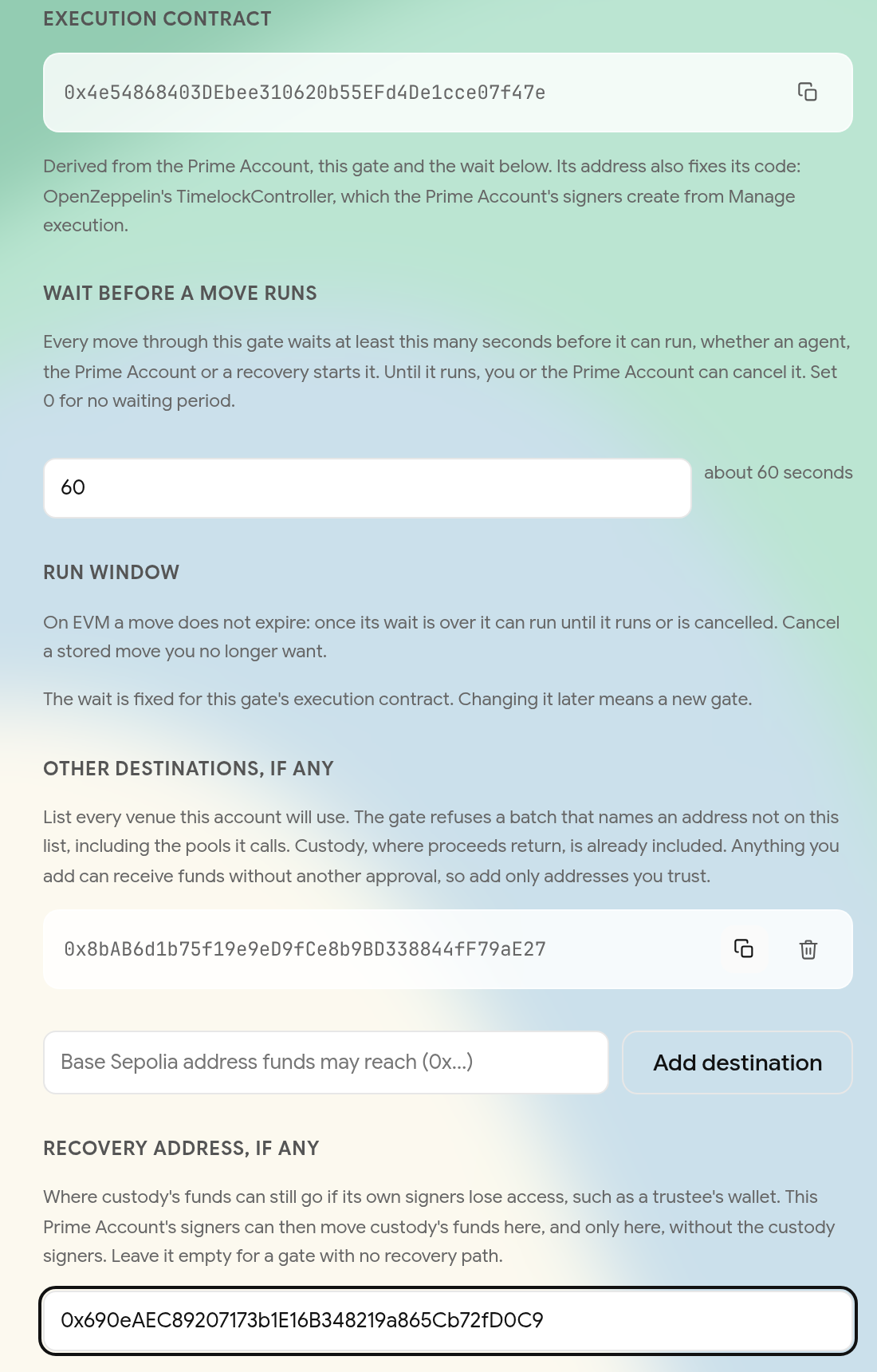
- Wait before a move runs, in seconds. Every move through the gate waits at least this long, recoveries included. 0 means no wait.
- Other destinations: every venue the account will use, such as the Aave pool or a Uniswap router. The gate refuses a move that calls any address not on its list. Custody is already on it. The gate checks addresses only: what a call to a listed venue may do, including where it pays, is up to the rule behind the move.
- Recovery address, the wallet that gets custody's funds if custody loses its signers. The app fills it in with an owner of the Prime Account; change it to a trustee's wallet if you have one. You can remove it, but then custody's funds can't move once its signers are gone.
- Limit takes any ERC-20 token: paste its address and the app reads its symbol and decimals. Enter the most the gate may release, or select Unlimited. Add another asset adds more, each with its own limit. Native ETH can't be granted; use wrapped ETH.
- Review lists the gate's address, the addresses it can pay, the limits, the wait and what the gate will refuse. Select Create gate and grant limit.
With one asset, custody sends three transactions: one creates the gate, one sets what it may do, and one grants the limit. Each extra asset adds one more.
The app can't change the destinations, the wait or the recovery address once the gate exists. To change them, custody sets up a new gate.
Keep custody's funds in a Safe. A plain wallet address (an EOA) has one key that can always move everything it holds, and nothing on chain can restrict it. In a Safe, set the owners and the approval count so that no single key can move funds alone. As on Stellar, a mistake there can lock the funds, so try it on testnet first and keep a recovery address. A limit is an ordinary token approval, so it doesn't expire. Custody can lower it, or set it to zero, at any time, without anyone else's approval.
3. Create the execution contract
The Prime Account's signers do this step.
- Go to Accounts, expand the Prime Account and select Manage execution.
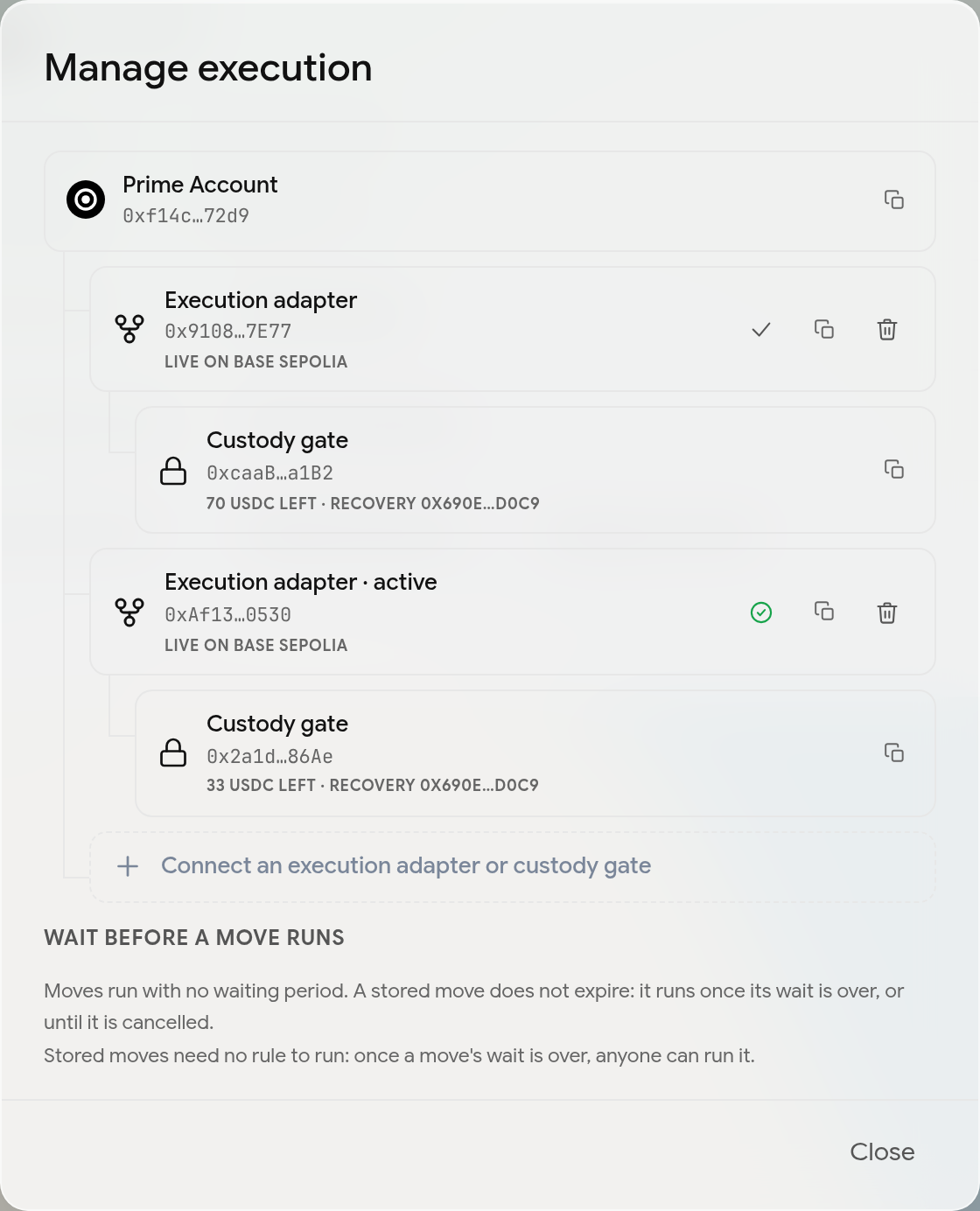
- If the gate was set up in another browser, select Connect an execution contract or custody gate and paste the gate's address. The app checks it on chain and shows the gate with what it can still release and its recovery address. If this browser doesn't know the gate's wait, enter it; it is checked before anything is signed.
- Select Create execution contract and sign. If the account needs more than one approval, you sign first and the others finish from a co-sign link.
On Stellar a second transaction lets stored moves run. On EVM there is none; see Moves with a wait.
An account can have several gates, each with its own execution contract. Manage execution shows them as a tree and marks one as active. Prime Execution, the rule builder and the custody gate card on Policies use the active one. For moves that run at once, custody sets up a second gate with a wait of 0.
4. Install rules
Go to Policies. Rules are listed at the top and templates below them.
| Template | What it allows |
|---|---|
| Swap on Uniswap, proceeds to custody | Drawing a token from custody and swapping it in one Uniswap v3 pool, with the proceeds paid to custody |
| Allocate to Aave | Drawing a token from custody and supplying it to Aave, with the position held by custody |
| Withdraw from Aave to custody | Withdrawing from custody's Aave position, paid straight back to custody |
| Deposit into an ERC-4626 vault | Drawing a token from custody and depositing it into one vault, with the shares going to custody |
| Withdraw from an ERC-4626 vault to custody | Redeeming custody's vault shares, paid straight to custody |
| Rebalance from Aave into a vault | Withdrawing from custody's Aave position and depositing the same amount into a vault, in one move |
| Rebalance from a vault into Aave | Redeeming vault shares and supplying what they return to Aave, in one move |
| Spending limit | Moving one token from the Prime Account to listed recipients, capped over a renewing window of seconds |
| Pull funds | Pulling a token from your wallet into the Prime Account, capped per pull, and sending it on to one chosen address or back to your wallet |
The first seven move custody's funds through the gate, so they need the execution contract connected in this browser first. If it isn't, Policies offers Manage execution.
The Uniswap template's minimum return is 1 base unit of the token out, and the builder doesn't ask for it, so a rule built from it gives no price protection. To set a real floor, raise the swap call's minimum output (its sixth argument) in the policy tree of Add a rule before installing.
To add a rule from a template:
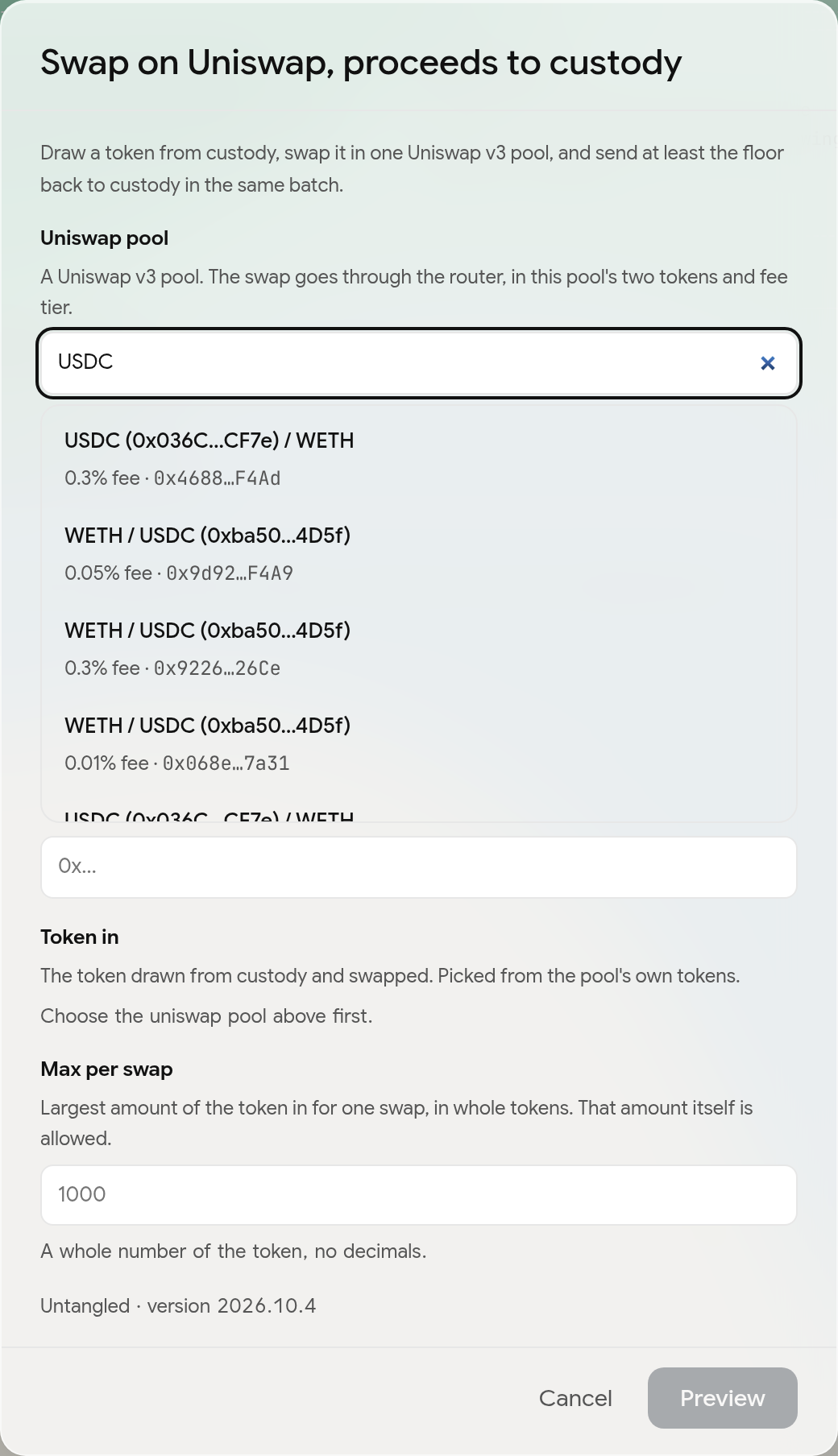
- Select the template. The builder asks only for what the template needs. For a Uniswap swap that is the pool, the token to swap and the most per swap.
- Pick the pool. You can search the live Uniswap v3 pools on Base Sepolia by token or address, or paste an address. For Aave, the search offers the network's Aave v3 pool. An ERC-4626 vault is pasted, and the app checks that it answers as one.
- Pick the token from the pool's own list. The other token and the pool's fee are read from the chain.
- Enter the cap in whole tokens, such as 10 for 10 USDC, and select Preview.
Preview opens Add a rule:
- Signer addresses starts with your connected wallet. Add the agent and anyone else who may act under the rule.
- Approvals required sets how many of them must approve each move. With 1, each listed signer can act alone. With more than 1, the install also creates a shared Safe of those signers at that count, and the rule names the shared Safe.
- Rule name, up to 20 characters.
- Policy data shows the policy as a tree or as raw text. For a template that runs several calls, the tree lists each call the move must make, in order, with the contract, the function and a condition on each argument, and the least the move must wait.
Select Install rule and sign. It is one transaction, and it needs the account's approval count, so the other signers may have to co-sign it from the Queue. The new rule shows on Policies straight away.
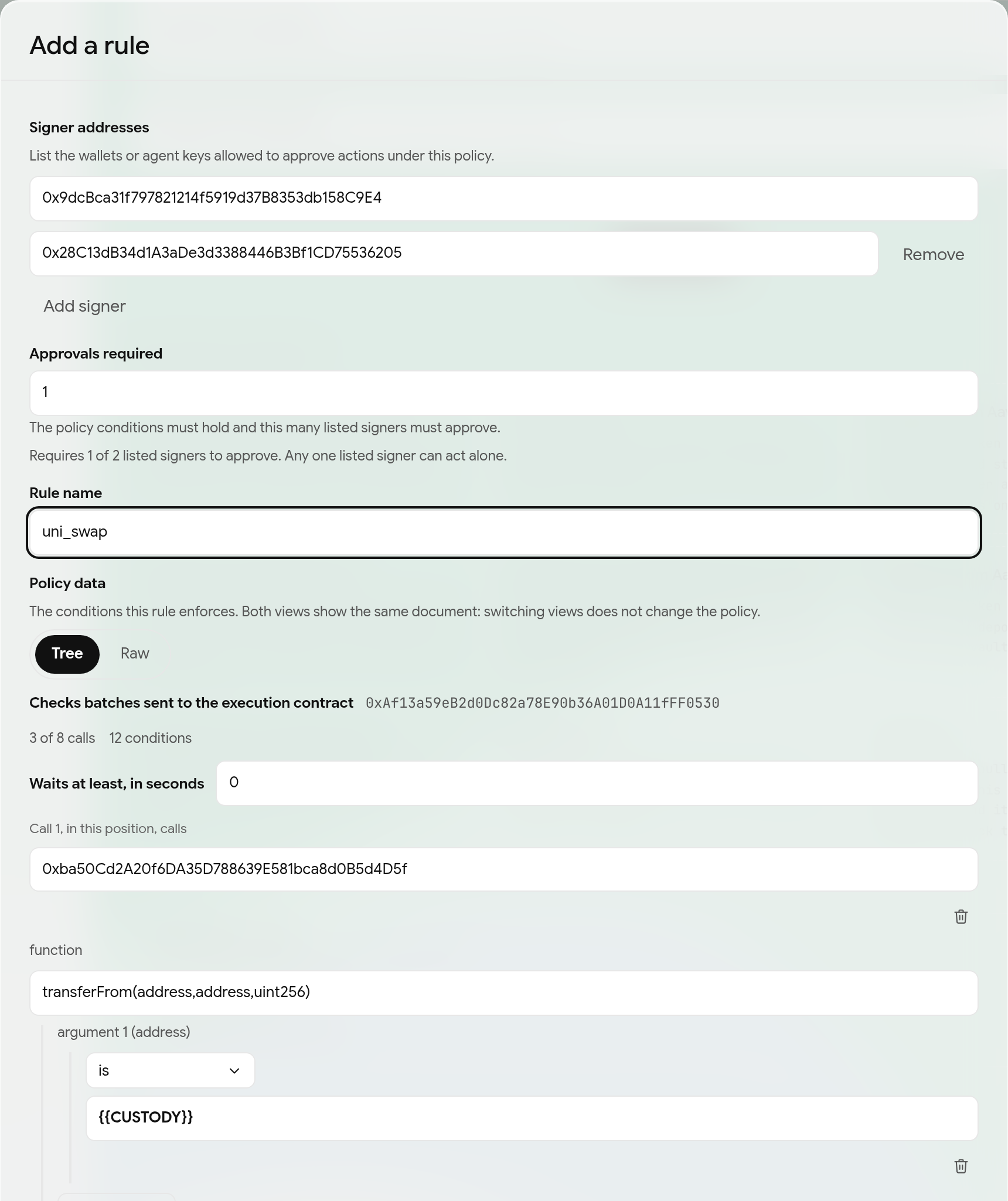
Add a rule also works without a template: write the policy yourself, in the tree or as raw text.
Selecting a rule shows what it allows, the contract it reaches, its signers and its policy, and that it never expires. On the browser that installed it, the policy spells out every call. Elsewhere the app counts the conditions stored on chain. The bin icon on a rule's row revokes it, with the account's approval count.
5. Run a move
- Connect the agent's wallet. If the agent isn't a signer of the Prime Account, select the Prime Account button at the top, choose Connect Safe smart account and paste the account's address.
- Go to Apps, then Prime Execution.
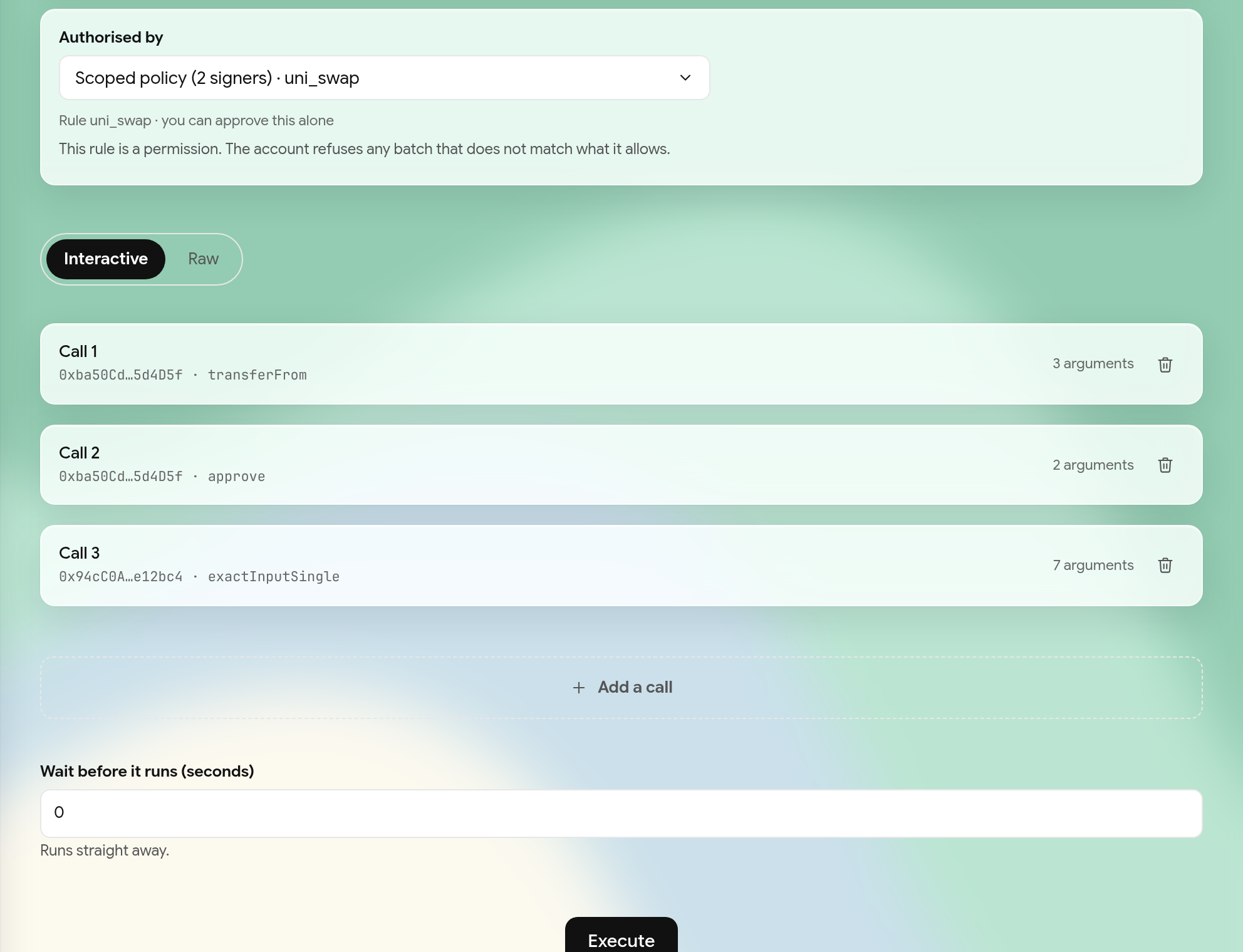
- Under Authorised by, choose the rule. Only rules for the active execution contract are offered, each marked "you can approve this alone" or with the approvals it needs. A signer of the account can also choose This account's own authority.
- Add the calls, one card per call in the Interactive view or as a document in the Raw view. A move can have up to eight calls, and the custody gate makes each of them.
- Leave Wait before it runs (seconds) at the rule's minimum, or set it higher.
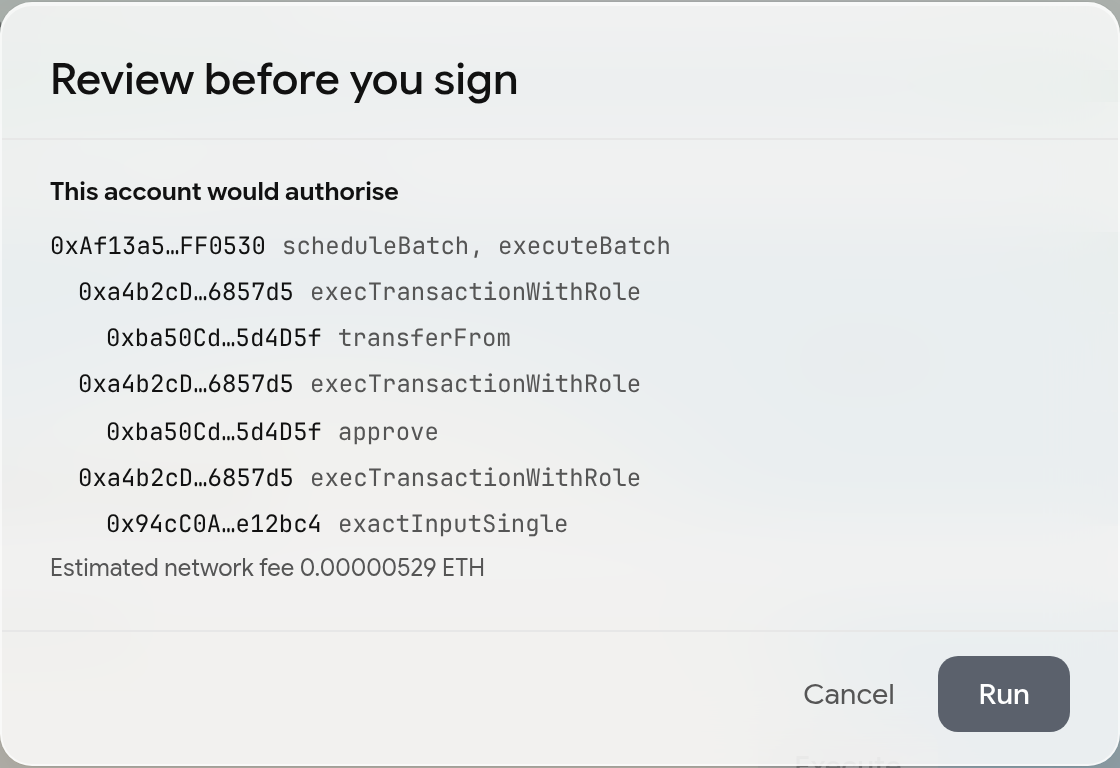
- Select Execute. The app simulates the move and shows Review before you sign with every call the account would authorise and the estimated fee.
- Select Run and sign.
A swap under the Uniswap template is three calls: the gate draws USDC from custody, approves the swap router, and swaps it for WETH, paid to custody.
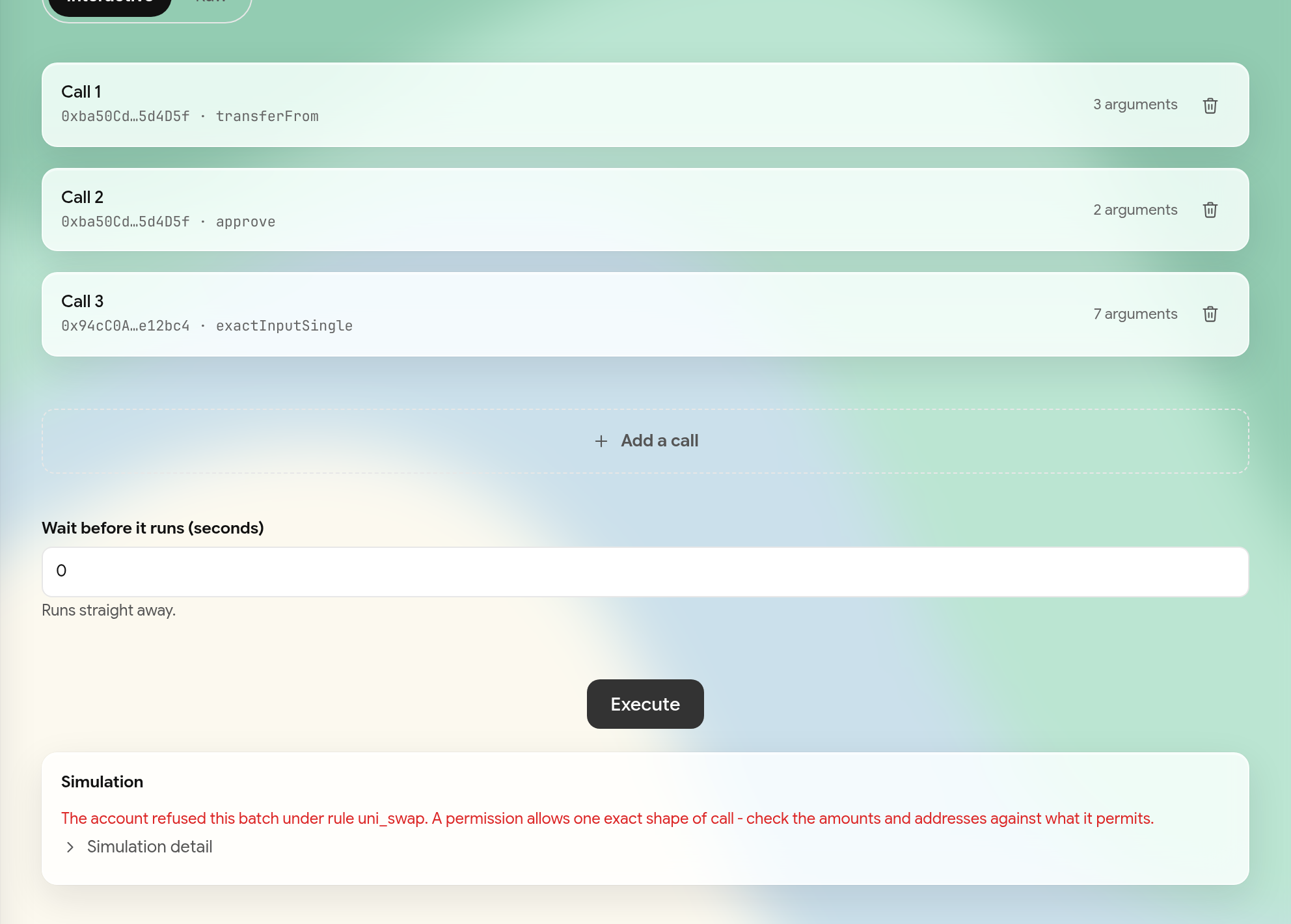
If the move breaks the rule, Execute stops with nothing signed: "The account refused this move under rule uni_swap", for example, when a swap is over the rule's cap. A move that draws more than custody's remaining limit is refused with the amount still left. A call to an address the gate doesn't list is refused by the gate.
If the rule needs more than one approval, the agent signs and the move waits in the Queue with a co-sign link.
No rule checks a move under the account's own authority. Only the gate bounds it: its list of addresses, custody's limits and the gate's wait. With the account's approval count, its signers can therefore use a listed venue to pay any address.
6. Moves with a wait
When the rule or the gate has a wait, signing stores the move on chain instead of running it, and the button in the review says Store. Stored moves show in Transactions, then Queue, as stored moves: Waiting, with the time left, then Ready to run.
- Once a move is ready, anyone can select Run. It needs no new approvals.
- Until it runs, a signer of the Prime Account can select Cancel, which is a Prime Account transaction and needs its approval count. Custody sees Cancel as custody and cancels with its own transaction. A move with no wait is stored and run in the same transaction, so it can't be cancelled.
- A stored move doesn't lapse. It stays ready until it runs or is cancelled.
Requests that need more signatures sit in the same Queue. Co-signing uses the Safe Transaction Service: the next signer opens the request or its co-sign link, selects Approve, reads each call and selects Sign and continue. Once enough signers have approved, any signer of that Safe can select Submit.
7. Recover custody funds
If custody's signers lose access, Recover custody funds prepares a move that pays custody's funds to the gate's recovery address. Custody signs nothing.
- Go to Policies. The custody gate card shows the active gate, what it can still release and the recovery address.
- Select Recover custody funds, choose the asset and the amount. The amount starts at everything the gate can move now.
- Select Prepare in Prime Execution. It opens with one call, the gate paying the recovery address, under the account's own authority.
- Select Execute, then Run or Store, and sign. It needs the account's normal approval count.
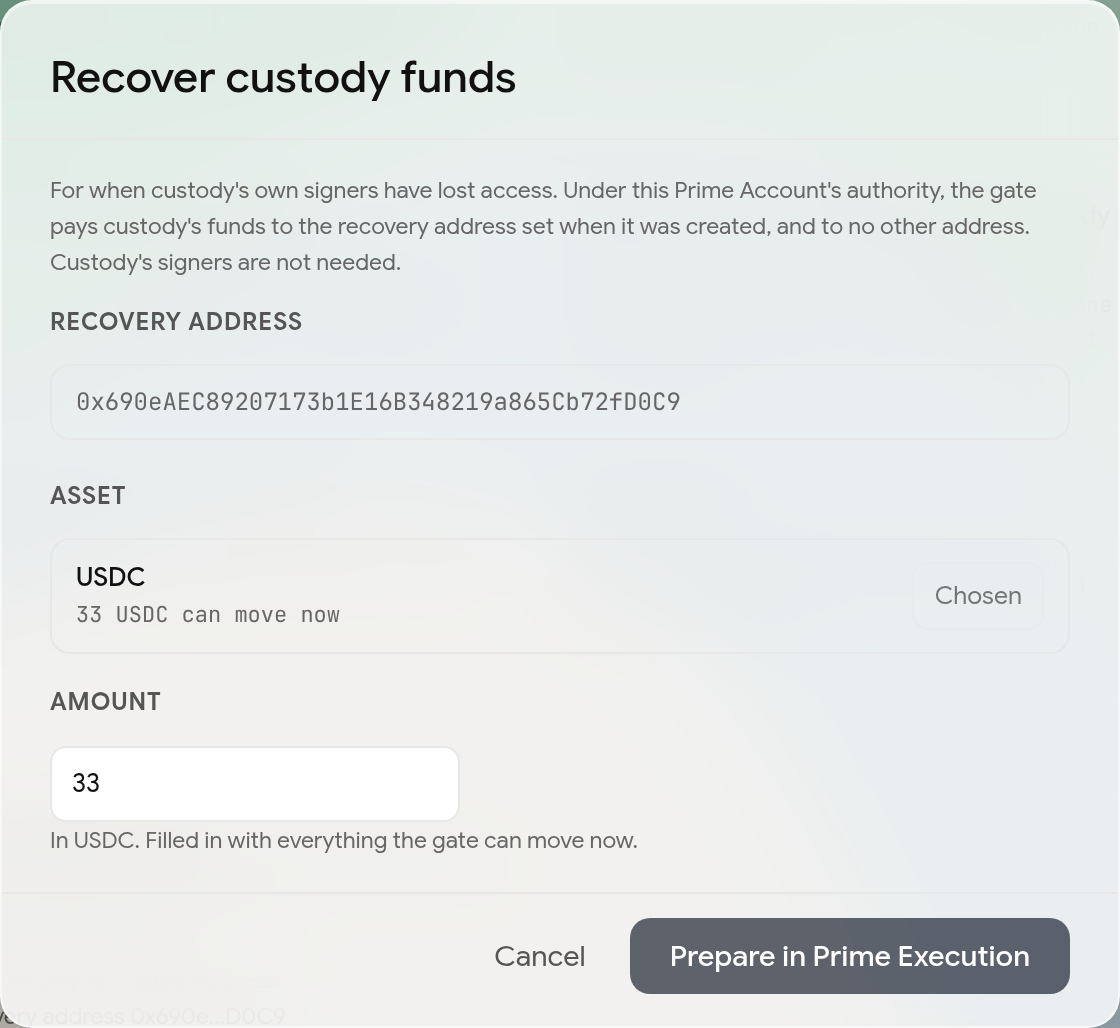
Like any move under the account's own authority, it waits for the gate's wait, and if that wait is above 0, custody can cancel it until it runs.
Signers
Signers are on the Signers tab, as on Stellar. On EVM you change one signer at a time: each addition, removal or change to the approval count is one transaction. If the account needs more than one approval, the change waits in the Queue for the others.
Manage allowance
Manage allowance on the Accounts page grants the Prime Account an allowance on one asset from your connected wallet, with an amount and an expiry in seconds. EVM token approvals have no expiry, so the grant goes through Uniswap's Permit2 contract, which enforces both. If your wallet hasn't yet let Permit2 reach that much of the asset, a first transaction does that. Revoke sets the account's Permit2 allowance to zero; your wallet's approval of Permit2 stays as it was. Rules that move custody's funds don't use it; they go through the gate.
Connected apps
Pairing an app is temporarily unavailable, and the Connected apps button is hidden. This section describes how pairing works when it returns.
You can pair an app with the Prime Account over WalletConnect. On EVM an app can only ask the account to sign messages, such as a sign-in or an off-chain order, which the owners approve. If it asks to send a transaction, the app shows the request and declines it.
Safe sign-in, under Apps, has the owners sign one message that the Safe then verifies. It moves no funds.
EVM Wallet
The app has a wallet built in, for testing without a browser extension. Turn on EVM Wallet in Settings and a wallet button appears in the header. It creates or imports a key, which stays in this browser, and offers Send, Receive (with free test USDC), Activity, Assets, Allowance and Wallets. Every signature and transaction waits for you to approve it on its approval card, which says what the transaction does.
Differences from Stellar
| Stellar | EVM | |
|---|---|---|
| Network | Stellar mainnet, and testnet in the beta app | Base Sepolia only |
| Account | OpenZeppelin smart account | Safe with a Zodiac Roles module |
| Custody's limit | An allowance per asset, for up to 180 days | An ERC-20 approval per asset, with no expiry |
| Wait | In ledgers, with a run window after which a move lapses | In seconds; a stored move doesn't lapse |
| Execution contract | Two transactions: create it, then let stored moves run | One transaction |
| Venues | Aquarius and Blend | Any address custody lists; templates for Uniswap v3, Aave v3 and ERC-4626 vaults |
| Lending position held by | The Prime Account | Custody |
| A rule needing two approvers | The listed wallets approve | A shared Safe of the listed wallets |
| Changing signers | Two transactions | One signer per transaction |
| Co-signing | Through our service | Through the Safe Transaction Service |
| Connected apps | Apps can send transactions, which the signers approve | Message signing only |